Subcribe to get notified when new features are added.
Categories
- Categories
- All
- New feature
- Improvement
- Fix
- Maintenance
- Announcement
- Coming soon
ASINFetcher 1.1.6
Summary:
- Added: See the seller feedback for the last 30 days vs lifetime
- Added: Support for Amazon Books page
Seller feedback for the last 30 days vs lifetime
When using the ASINFetcher to grab a list of sellers you will see a new column with the name Seller Feedback Count 30 days/Lifetime. This new column will allow you to quickly see the feedback the seller has received in the last 30 days, this information is available on the Seller Storefront page, to save you a few clicks we will get this information for you and display it on your results.
ASINFetcher will only display Seller Feedback when available, if the seller does not have feedback, like in the case of Amazon or if the seller is new, ASINFetcher will not display any feedback.
Support for Amazon Books page
Now, you will be able to go to a book page, click on the author name and grab all the ASINs listed there.
Watch it in action on the video(no audio) below.
This is all for this update, thank you and a happy new year!
AZInsight 3.1.3
Summary
- Change the default position of AZInsight
In this update, we have added a new option to change the default position of the AZInsight box, please watch the video below to learn how to do it.
AZInsight v3.1.2
Summary
- Activate your plugins without leaving AZInsight
- Update to MX and CA Remote Fulfillment with FBA ( North American Remote Fulfillment )
On this version of AZInsight, we have added an easier way to enable the plugins, before this update you would have to go to our web portal to enable the plugin, now you can simply enable the plugins without leaving AZInsight, please take a look at the video below to learn where you can enable the plugins.
Also on this update, we update the calculation for the Remote Fulfillment with FBA or North American Remote Fulfillment, you can read more about the update on the Amazon post. 2021 Remote Fulfillment with FBA fee changes.
Thanks for using AZInsight 🎉
ScanEZ v1.2.6
Summary
- Amazon Update for Size tier
- Historical Data on the Profit Calculator
- 15 days history for scanned ASINs
ScanEZ has updated to reflect the Amazon change to size tiers. 2021 Amazon.ca fee changes summary. We also updated our Profit Calculator to include the Historical Data; this will save you some time when you're scanning items in a store.
With this update, we also increased to 15 days the time ScanEZ will store the history of scanned ASINs.
AZInsight v3.0.8
Summary
- Seller Rating on Stock Checker
- Prep Instructions added to Export Options
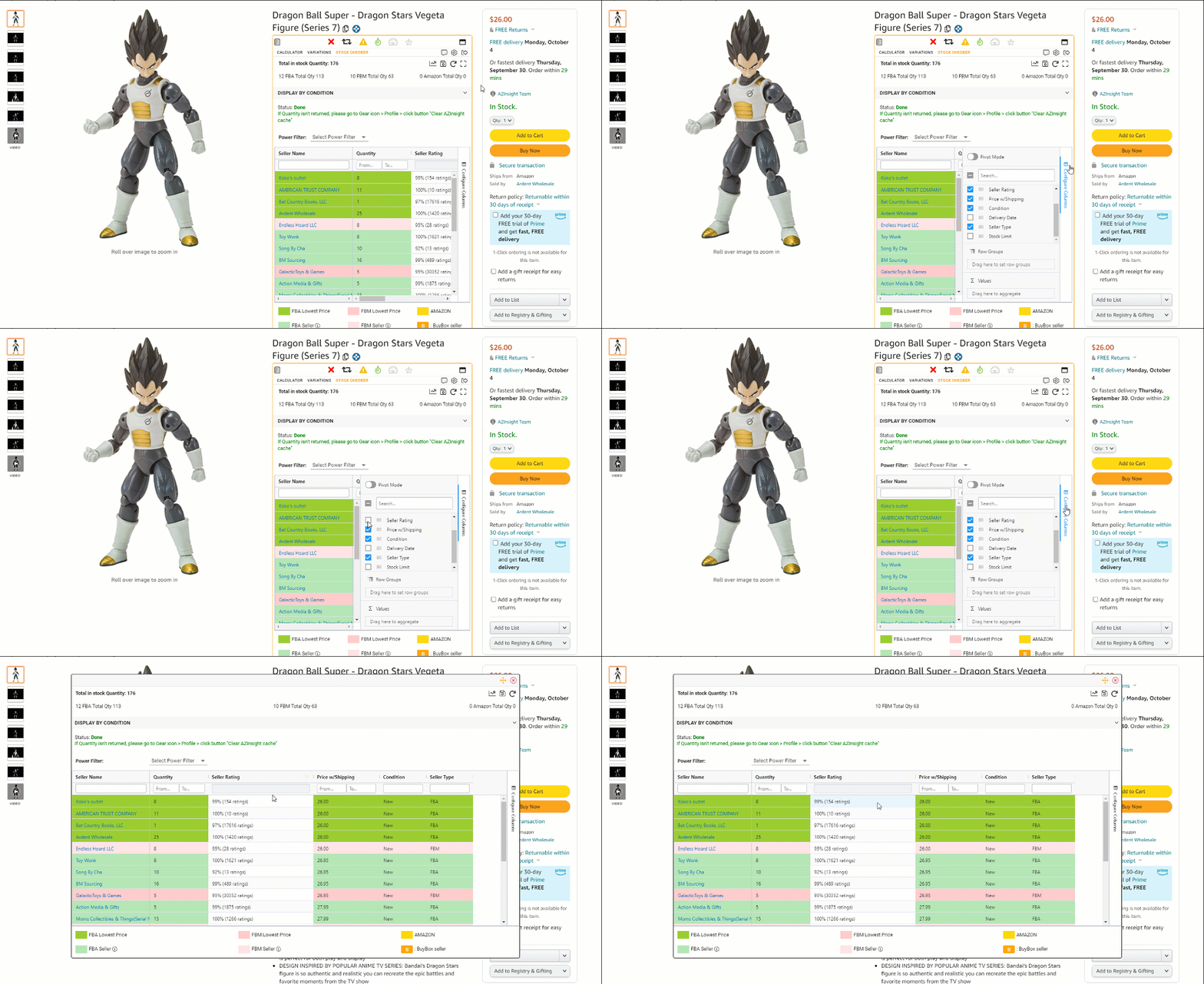
With this new update of AZInsight, we have added the Seller Rating on the Stock Checker, to enable this you need to check the box in the configure column option in the Stock Checker.
We also added the Prep Instructions to the export option, you can use this to export the Prep Instructions to your Google Spreadsheet, Quick Copy, or Export it to CSV.